
Digital Accessibility In Education And WCAG Compliance
Digital learning has become normal in schools, colleges, and universities. Students attend classes online, submit assignments through portals, watch recorded lectures, and take assessments inside learning systems. Even parents and staff depend on online tools for communication, enrollment, scheduling, payments, and support.
But here is the truth: digital education is only effective when everyone can use it. If a student cannot read a PDF with a screen reader, cannot navigate a portal with a keyboard, or cannot understand a video without captions, the learning experience becomes unfair and stressful. This is precisely why digital accessibility matters in education.
Digital accessibility means that online learning content and tools are designed so that people with different abilities can use them without barriers. It is not just a technical requirement. It is part of equal access, inclusive learning, and good educational design.
This blog explains digital accessibility in education simply and shows how WCAG compliance fits into the education environment.
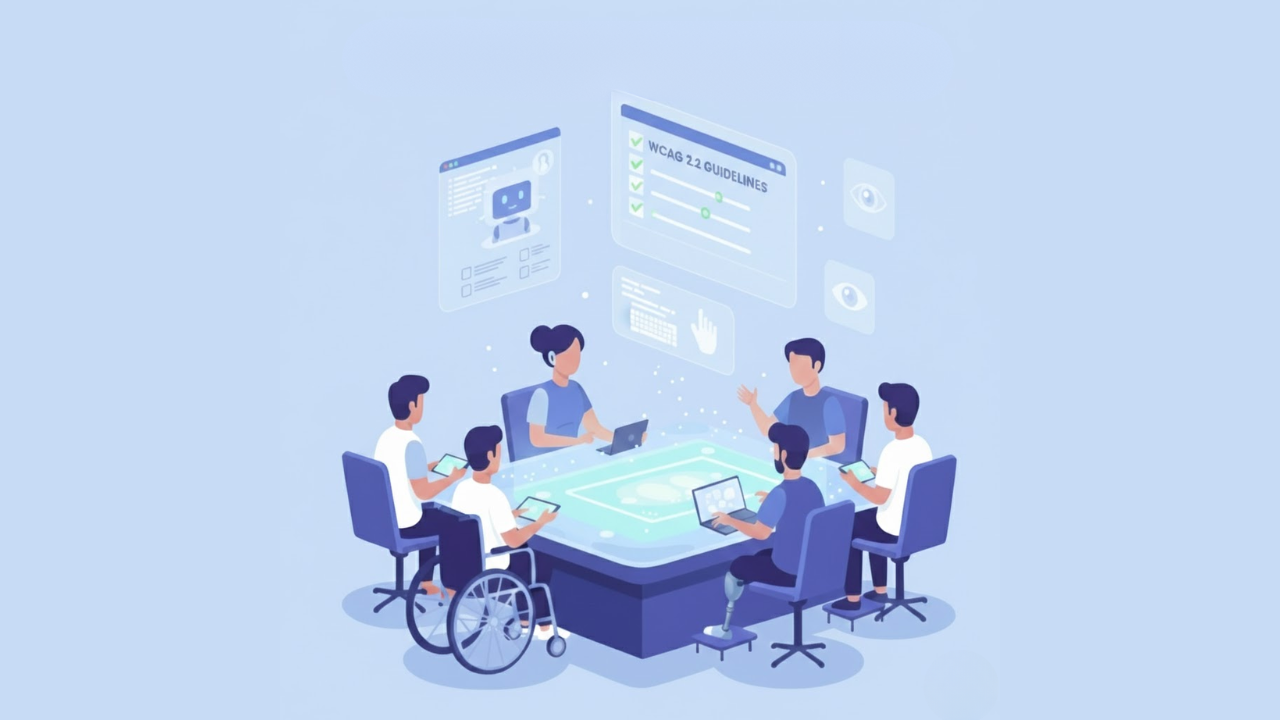
What Digital Accessibility Means In Education
Digital accessibility means your learning content can be used by all students, including those with disabilities or who use assistive tools. In education, this includes everything students use daily, such as learning platforms, school websites, PDFs, course modules, and video lessons.
Accessibility is important because education depends on access. When students cannot access learning materials, they fall behind even when they are capable and motivated. That can affect grades, confidence, and participation.
A truly accessible learning experience usually supports:
Students who use screen readers
Students who have low vision or color blindness
Students who are deaf or hard of hearing
Students with limited mobility who cannot use a mouse
Students with learning disabilities or attention-related challenges
Students with anxiety or cognitive overload in complex online systems
Accessibility also helps students without disabilities. For example, captions can help a student studying in a noisy environment. Straightforward navigation helps all users. Better readability helps students who speak English as a second language.
So accessibility improves learning for everyone, not only a small group.
Accessibility Vs. Accommodations (And Why Both Are Needed)
Schools often provide accommodations to support students. This is good and necessary. But accessibility and accommodations are not the same.
Accessibility Is Proactive
Accessibility means the content is designed correctly from the start. It reduces barriers for everyone automatically.
Examples include:
Captions available on every lecture video
Keyboard-friendly course navigation
PDFs that are readable with assistive technology
Accommodations Are Reactive
Accommodations are special adjustments provided when a student requests help.
Examples include:
Extended time during tests
Providing notes in a different format
One-on-one support sessions
Both are useful. But if accessibility is missing, schools often rely too heavily on accommodations. This creates delays and extra stress for students and staff. It also creates an unfair situation in which students repeatedly have to ask for support to access basic learning materials.
When schools improve accessibility, accommodations become easier to manage and far fewer barriers appear in the first place.
Why Digital Accessibility Matters In Education
Education is not optional. It shapes careers, confidence, and opportunities. This is why accessibility in education is a serious responsibility.
Here are the most significant reasons it matters.
Equal Access To Learning
Every student should be able to view, understand, and interact with learning materials, regardless of ability.
Better Learning Outcomes
When tools are easy to use, students spend less time struggling with the platform and more time focusing on learning.
Less Stress For Teachers And Support Teams
If content is accessible by default, teachers receive fewer urgent requests, like:
"I can't open this PDF."
"I can't access the quiz."
"I can't understand the video."
Stronger Student Confidence And Independence
Students who can access learning tools without help feel more independent and respected.
Reduced Legal And Compliance Risk
In many countries, digital accessibility is connected to disability rights laws and education standards. This is why many institutions use WCAG as a practical way to measure accessibility.
WCAG Explained In Simple Words
WCAG stands for Web Content Accessibility Guidelines. WCAG is a set of rules that explains how to make digital content easier for people with disabilities to use. These guidelines are created by the W3C (World Wide Web Consortium), which publishes global standards for the web.
WCAG is helpful because it turns accessibility into clear actions. It helps institutions know what to fix, how to test it, and what "accessible" really means.
WCAG Versions Used In Education
Most educational institutions focus on WCAG 2.1, and some are now moving toward WCAG 2.2.
WCAG 2.1 is widely used because it includes improvements for:
Mobile accessibility
Keyboard and touch interactions
Visual and cognitive needs
This is why it is often used as a baseline for WCAG compliance.
WCAG Levels: A, AA, And AAA
WCAG includes three compliance levels.
Level A (Basic)
This is the minimum requirement. It removes the most severe barriers.
Level AA (Recommended)
This is the most common goal for schools and universities. It covers the major issues that block access to learning.
Level AAA (Advanced)
This is the highest level. It is difficult to apply to all content and is not realistic for many institutions.
In education, Level AA is usually the best balance between impact and feasibility.
The Four WCAG Principles (POUR)
WCAG is built around four main principles. These Pour principles are helpful and straightforward for education teams.
Perceivable
Students must be able to perceive the content.
This includes:
Text alternatives for images
Captions for videos
Good color contrast for text
Clear reading structure for content
Operable
Students must be able to operate the interface.
This includes:
Full keyboard navigation
Clear focus indicators
No "keyboard traps."
Buttons that work well on mobile
Understandable
Students must understand the content and how to use it.
This includes:
Clear instructions
Consistent navigation
Helpful form labels
Simple language where possible
Robust
Content must work with different devices and assistive tools.
This includes:
Clean structure
Accessible HTML
Compatibility with screen readers and browsers
Where Accessibility Problems Usually Happen In Education
Education has a large digital ecosystem. Many accessibility issues happen because many people across departments create content.
Here are the most common problem areas.
Learning Management Systems (LMS)
Many are generally accessible, but the course content uploaded to them often isn't.
Common LMS issues include:
Missing headings on course pages
Poor link text like "click here."
Navigation that becomes confusing after updates
Embedded tools that do not support keyboard use
PDFs And Documents
A large part of learning content is shared in document format.
Common document issues include:
Scanned PDFs that are just images
No headings or structure
Wrong reading order
Tables not labeled properly
Images without descriptions
Videos And Recorded Lessons
Video learning is common, but accessibility is often ignored.
Common issues include:
No captions
Poor captions with errors
No transcript
Visual instructions were not explained in audio
Forms, Portals, And Online Services
Students depend on online services to manage their educational lives.
Common issues include:
Form fields without labels
Unclear error messages
Buttons that are hard to access using a keyboard
Online Assessments And Proctoring Tools
Assessments can become inaccessible quickly.
Common issues include:
Timers that cannot be adjusted
Keyboard navigation issues
Complex multi-step forms
Sudden pop-ups that block users
WCAG 2.1 And WCAG 2.2: What Schools Should Know
Many institutions still follow WCAG 2.1 because it is widely used in education standards and accessibility policies. But WCAG 2.2 brings extra improvements that help reduce common learning barriers.
WCAG 2.2 includes updates that improve:
User focus, visibility, and navigation clarity
Interaction behavior on small screens and mobile devices
Support for users who struggle with complex and confusing interfaces
This matters because many students access content on mobile devices and benefit from simpler, more predictable digital experiences.
A Practical WCAG Compliance Roadmap For Schools And Universities
The easiest way to manage accessibility is to treat it like a process, not a one-time project.
Here is a step-by-step approach.
1: Identify All Digital Learning Content
Create a list of the systems and content students use, including:
School website and admission pages
Student portal and support services pages
LMS course content and templates
Video learning libraries
PDF templates and handouts
EdTech tools used inside courses
2: Audit For Accessibility Issues
A good accessibility audit includes:
Automated testing tools
Manual keyboard testing
Screen reader testing for key pages
Content checks for documents and videos
Automated tools are helpful, but they do not catch everything. Manual testing is necessary to understand real usability.
3: Prioritize Fixes Based On Student Impact
You do not need to fix everything at once.
Start with high-impact areas, such as:
Enrollment and registration pages
LMS navigation templates
Course materials used across multiple classes
Required videos without captions
High-use student support forms
4: Fix Content And System Issues
Accessibility fixes may include:
Adding captions and transcripts
Fixing headings and structure
Improving contrast and readability
Adding form labels and instructions
Ensuring keyboard navigation works properly
5: Retest And Keep Records
After fixing issues:
Retest using the same audit methods
Keep a record of what was fixed
Document known limitations and timelines
Documentation helps teams maintain progress and avoid repeating mistakes.
Accessibility Governance That Works Long-Term
Many schools fail at accessibility because they lack a system to manage it. Accessibility becomes random and inconsistent.
A strong program includes:
A Clear Accessibility Policy
The policy should explain:
What WCAG version does the institution follow?
Which level is required (usually AA)
What content types are covered
Defined Responsibilities
Accessibility must be shared, but roles must be clear.
Example responsibilities:
IT ensures platforms support accessibility
Faculty create accessible learning materials
Instructional designers build accessible templates
Procurement checks vendor accessibility
Admin teams ensure portals and forms are accessible
Training And Support
Training should focus on practical actions, such as:
How to create accessible documents
How to add captions
How to structure course pages correctly
How to create accessible slide decks
Procurement And EdTech Vendor Management
Schools use many third-party learning tools. Accessibility issues often stem from tools purchased without proper checks.
To reduce risk:
Add accessibility requirements in contracts
Ask vendors about their WCAG support
Request proof and testing documentation
Test key student workflows before adoption
Ensure vendors maintain accessibility after updates
A tool is only useful if all students can use it.
Quick Accessibility Checklist For Educators And Content Creators
Accessibility improves quickly when educators follow simple habits.
Course Page Habits
Use headings to structure modules
Keep navigation consistent week to week
Use clear link text
Avoid long blocks of text
Document Habits
Use heading styles, not bold-only headings
Ensure readable structure
Add alt text to meaningful images
Avoid scanned PDFs without readable text
Video Habits
Add captions to all instructional videos
Provide transcripts when possible
Describe key visuals in speech
Forms And Assessments
Use clear labels
Make error messages easy to understand
Ensure keyboard navigation works
Conclusion
Digital accessibility is not just a compliance task. It is part of good education. When students can access learning tools easily, they learn better, participate more, and feel respected. WCAG gives education teams a clear, structured way to remove barriers across platforms, documents, videos, and course content.
The best path is simple: start with the most-used student journeys, fix the biggest blockers first, train the people who create content, and keep accessibility as an ongoing process. If you need a deeper educational approach to accessibility, resources like Inclusive Web can help institutions build long-term accessibility practices.
Have Questions?
We Are Inclusive Web
We work with our clients to simplify digital accessibility to ensure your web and digital applications are ADA compliant and accessible to all your users. If you’d like to talk about your digital accessibility, you can email us at matthew@inclusiveweb.co, leave us a note here, or schedule a call here to discuss. Let’s make the web inclusive to all!